Rename Files with Bates Numbers: Document Organization Guide
Transform your document management by incorporating Bates numbers into file names. Learn proven strategies for creating organized, searchable file naming systems that streamline litigation support workflows.
Why Rename Files with Bates Numbers?
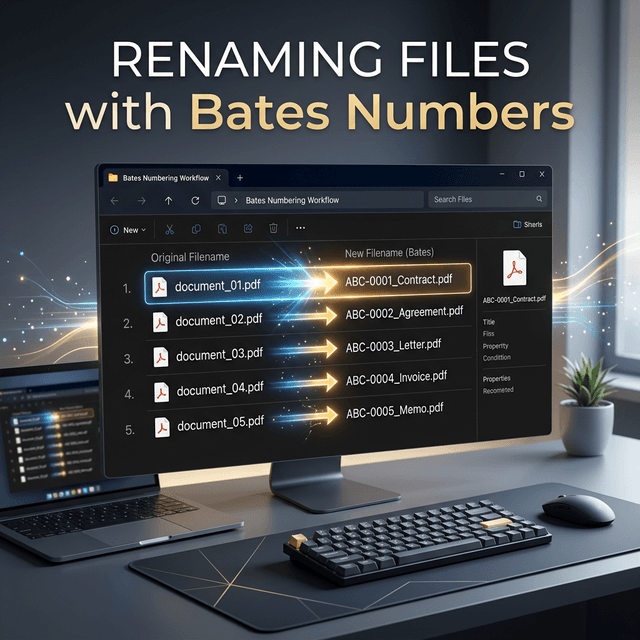
Renaming files to include Bates numbers creates a powerful organizational system that connects file names directly to document identification. This practice offers several significant advantages for litigation support and document management.
Key benefits:
- Instant identification: Know exactly which document you're looking at from the file name
- Easy searching: Find documents quickly by Bates number without opening files
- Proper sorting: Files automatically sort in Bates number order
- Production tracking: Clearly identify which files were included in productions
- Version control: Distinguish between original and Bates-stamped versions
- Database integration: Simplify importing into document review platforms
Professional Standard
Many litigation support professionals consider Bates-based file naming essential for maintaining organized document productions. It creates a clear connection between physical/digital documents and their file system representation.
File Naming Strategies
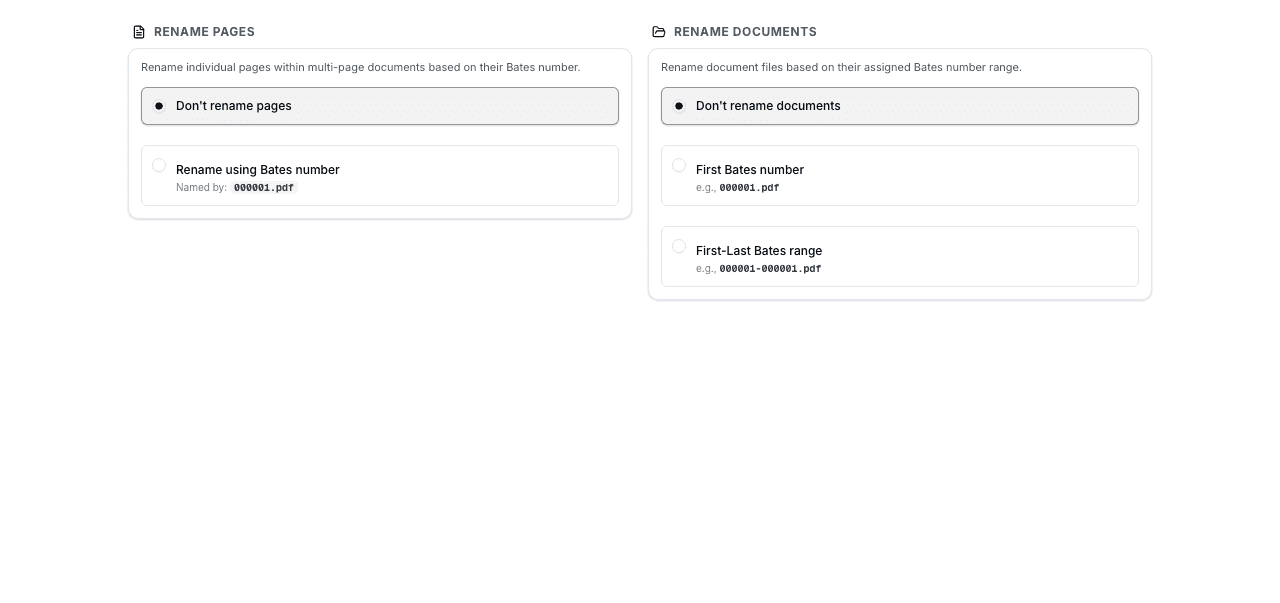
Strategy 1: Bates Number Only
The simplest approach uses only the Bates number as the file name:
Original: contract_smith_2024.pdf
Renamed: BATES000001.pdf

Original: email_jones_re_meeting.pdf
Renamed: BATES000002.pdf
Advantages:
- Clean, consistent naming
- Perfect sorting by Bates number
- No file name length issues
- Easy to implement programmatically
Disadvantages:
- Loses descriptive information from original file name
- Requires opening files or consulting index to identify content
- Not human-friendly for browsing
Strategy 2: Bates Number + Original Name
Combine Bates number with the original file name:
Original: contract_smith_2024.pdf
Renamed: BATES000001_contract_smith_2024.pdf

Original: email_jones_re_meeting.pdf
Renamed: BATES000002_email_jones_re_meeting.pdf
Advantages:
- Maintains descriptive information
- Still sorts correctly by Bates number
- Human-friendly for browsing
- Preserves original naming context
Disadvantages:
- Longer file names
- May hit file system path length limits
- Original names may be inconsistent or unclear
Strategy 3: Bates Number + Metadata
Create structured file names with Bates number and key metadata:
Format: [BATES]_[DATE]_[CUSTODIAN]_[DOCTYPE].pdf

Examples:
BATES000001_20240115_Smith_Contract.pdf
BATES000002_20240116_Jones_Email.pdf
BATES000003_20240120_Williams_Invoice.pdf
Advantages:
- Consistent, structured naming
- Includes key searchable metadata
- Professional appearance
- Supports automated processing
Disadvantages:
- Requires metadata extraction or manual entry
- More complex to implement
- Longer file names
Strategy 4: Bates Range for Multi-Page Documents
For multi-page documents, include the Bates range:
Single page:
BATES000001.pdf

Multi-page (5 pages):
BATES000002-000006.pdf

Multi-page with description:
BATES000007-000025_Smith_Deposition_Transcript.pdf
Advantages:
- Immediately shows document length
- Helps identify multi-page documents
- Useful for production tracking
Disadvantages:
- More complex naming logic
- Requires knowing page count before renaming
- Longer file names
Implementation Methods
Manual Renaming
For small document sets, manual renaming is straightforward:
Windows:
- Select file in File Explorer
- Press F2 or right-click → Rename
- Enter new name with Bates number
- Press Enter to confirm
macOS:
- Select file in Finder
- Press Return or click file name
- Enter new name with Bates number
- Press Return to confirm
Manual renaming works for 10-20 files but becomes impractical for larger sets.
Batch Renaming Tools
For larger document sets, use batch renaming tools:
Windows - PowerRename (PowerToys):
- Free Microsoft utility
- Supports regex patterns
- Preview before renaming
- Can add prefixes/suffixes to multiple files
macOS - Automator:
- Built-in automation tool
- Create custom renaming workflows
- Can incorporate sequential numbering
- Reusable for future batches
Cross-platform - Bulk Rename Utility:
- Powerful batch renaming features
- Sequential numbering support
- Regular expression support
- Preview and undo capabilities
Scripting Solutions
For maximum flexibility, use scripts to automate renaming:
Python script example:
import os

# Configuration
folder = "/path/to/documents"
prefix = "BATES"
start_number = 1
digits = 6

# Rename files
files = sorted(os.listdir(folder))
for i, filename in enumerate(files, start=start_number):
    if filename.endswith('.pdf'):
        old_path = os.path.join(folder, filename)
        new_name = f"{prefix}{str(i).zfill(digits)}.pdf"
        new_path = os.path.join(folder, new_name)
        os.rename(old_path, new_path)
        print(f"Renamed: {filename} → {new_name}")
PowerShell script example (Windows):
$folder = "C:\Documents"
$prefix = "BATES"
$counter = 1

Get-ChildItem $folder -Filter *.pdf | Sort-Object Name | ForEach-Object {
    $newName = "$prefix{0:D6}.pdf" -f $counter
    Rename-Item $_.FullName -NewName $newName
    Write-Host "Renamed: $($_.Name) → $newName"
    $counter++
}
Integrated Workflow
The most efficient approach integrates renaming with Bates stamping:
- Organize original files in correct order
- Apply Bates numbers to PDFs using BatesFast
- Automatically rename output files with Bates numbers
- Save both original and stamped versions with clear naming
This workflow ensures file names always match the Bates numbers stamped on documents.
Best Practices for Bates-Based File Naming
Naming Conventions
Essential rules:
- Consistent format: Use the same naming pattern for all files in a production
- Leading zeros: Ensure proper sorting (BATES000001, not BATES1)
- No spaces: Use underscores or hyphens instead of spaces
- Avoid special characters: Stick to letters, numbers, hyphens, and underscores
- Reasonable length: Keep total path length under 260 characters (Windows limit)
- Case consistency: Use all uppercase or all lowercase consistently
Folder Organization
Combine Bates-based file naming with logical folder structure:
Production_2024-03-01/
├── Originals/
│   ├── contract_smith_2024.pdf
│   └── email_jones_meeting.pdf
├── Bates_Stamped/
│   ├── BATES000001_contract_smith_2024.pdf
│   └── BATES000002_email_jones_meeting.pdf
└── Production_Index.xlsx
This structure maintains both original and Bates-stamped versions with clear organization.
Documentation
Create a production index documenting the relationship between file names and Bates numbers:
Bates Number | File Name                              | Pages | Custodian
BATES000001  | BATES000001_contract_smith_2024.pdf    | 1     | Smith
BATES000002  | BATES000002_email_jones_meeting.pdf    | 1     | Jones
BATES000003  | BATES000003-000007_deposition.pdf      | 5     | Williams
This index serves as a reference for locating documents and verifying production completeness.
Version Control
When maintaining multiple versions, use clear naming:
Original files:
contract_smith_2024.pdf

Bates-stamped version:
BATES000001_contract_smith_2024.pdf

Redacted version:
BATES000001_contract_smith_2024_REDACTED.pdf

Confidential designation:
BATES000001_contract_smith_2024_CONF.pdf
Pro Tip
Always keep original files with their original names in a separate folder. Rename only copies or Bates-stamped versions. This preserves the ability to trace documents back to their source and re-process if needed.
Common Challenges and Solutions
Challenge: File Name Length Limits
Problem: Windows has a 260-character path length limit. Long file names combined with deep folder structures can exceed this limit.
Solutions:
- Use shorter folder paths
- Abbreviate metadata in file names
- Consider Bates-only naming for very long original names
- Enable long path support in Windows 10/11 (registry edit)
Challenge: Duplicate File Names
Problem: Multiple documents with the same original name need unique Bates-based names.
Solutions:
- Bates numbers naturally create uniqueness
- Add custodian or date to distinguish similar documents
- Use Bates ranges for multi-page documents
Challenge: Maintaining Correspondence
Problem: Keeping file names synchronized with actual Bates numbers on documents.
Solutions:
- Rename files immediately after Bates stamping
- Use automated workflows that stamp and rename simultaneously
- Verify correspondence through spot-checking
- Maintain production index for reference
Challenge: Re-processing Documents
Problem: Need to re-stamp documents with different Bates numbers, requiring file renaming.
Solutions:
- Keep original files with original names
- Create new folder for re-processed versions
- Update production index to reflect changes
- Document reason for re-processing
Automation and Integration
Document Management Systems
Many document management systems support automated Bates-based file naming:
- Relativity: Automatically names files based on document identifiers
- Concordance: Supports custom naming templates
- Everlaw: Configurable export naming conventions
- Logikcull: Automated naming during production
Custom Workflows
Build custom workflows that integrate Bates stamping and file renaming:
- Import documents into workflow system
- Apply Bates numbers using BatesFast or similar tool
- Automatically rename output files with Bates numbers
- Generate production index
- Export to document review platform
This end-to-end automation eliminates manual renaming and ensures consistency.
Frequently Asked Questions
Should I rename files before or after applying Bates numbers?
Rename after applying Bates numbers. This ensures file names match the actual Bates numbers stamped on documents. If you rename first, you'd need to manually track which file gets which Bates number.
What's the best file naming format for Bates-numbered documents?
For most purposes, "BATES000001_original_filename.pdf" works well. It maintains sorting by Bates number while preserving descriptive information. For very large productions, Bates-only naming (BATES000001.pdf) may be simpler.
How do I handle multi-page documents in file names?
Use Bates ranges: "BATES000001-000005.pdf" for a 5-page document. This immediately shows the document spans multiple pages and helps with production tracking. Single-page documents just use one number: "BATES000006.pdf".
Can I automate file renaming with Bates numbers?
Yes, use batch renaming tools (PowerRename, Bulk Rename Utility) or scripts (Python, PowerShell) to automate renaming. For large productions, automation is essential for efficiency and consistency.
Should I keep the original file names?
Yes, always keep original files with original names in a separate folder. Rename only copies or Bates-stamped versions. This preserves traceability and allows re-processing if needed.
What characters should I avoid in Bates-based file names?
Avoid: / \ : * ? " < > | and spaces. These characters cause problems in file systems or databases. Use underscores or hyphens instead of spaces. Stick to letters, numbers, hyphens, and underscores.
How do I ensure file names sort correctly?
Use leading zeros in Bates numbers (BATES000001, not BATES1). This ensures proper alphabetical sorting. Without leading zeros, BATES10 would sort before BATES2, which is incorrect.
What if I need to re-stamp documents with different Bates numbers?
Keep your original files intact. Re-stamp from originals with new Bates numbers, then rename the new output files accordingly. Create a new folder for the re-processed version and update your production index.
Conclusion
Renaming files with Bates numbers creates a powerful organizational system that streamlines document management throughout litigation. By incorporating Bates numbers into file names, you create instant connections between file system organization and document identification, making it easy to locate, track, and manage documents.
Success requires choosing an appropriate naming strategy, implementing consistent conventions, and using the right tools for your document volume. Whether you're manually renaming a few dozen files or automating thousands, the principles remain the same: consistency, clarity, and proper documentation.
Combined with proper folder organization and production indexes, Bates-based file naming transforms chaotic document collections into well-organized, easily searchable systems that support efficient litigation workflows.
Ready to Organize Your Documents?
Start with BatesFast to apply Bates numbers, then use our file naming best practices to create a perfectly organized document production. Start with one free preview run, then $299 one-time purchase.
Start Organizing Now