Batch Process Bates Numbering: Efficient Multi-File Document Stamping
Processing hundreds or thousands of documents for litigation? Learn how to efficiently batch process Bates numbers across multiple files while maintaining accuracy, organization, and sequential numbering.

What is Batch Bates Numbering?
Batch Bates numbering is the process of applying sequential Bates numbers across multiple documents simultaneously, rather than processing files one at a time. This approach is essential for litigation support professionals who regularly handle large document productions involving hundreds or thousands of files.
Unlike single-file processing, batch operations maintain continuous numbering across all documents in a set, ensuring that document 1 ends at BATES000050 and document 2 begins at BATES000051, creating an unbroken chain of custody throughout your entire production.
Key Benefit
Batch processing can reduce document preparation time from hours to minutes, while eliminating the risk of numbering gaps or duplicates that can occur with manual sequential processing.
Why Batch Processing Matters
Time Efficiency
The most obvious advantage of batch processing is time savings. Processing 100 documents individually might take 2-3 hours, including the time to open each file, apply settings, and save. Batch processing the same set takes 5-10 minutes.
For litigation support teams handling multiple cases simultaneously, this efficiency multiplier is transformative. What once required dedicated staff time now becomes a quick automated task.
Sequential Accuracy
Maintaining perfect sequential numbering across multiple documents is challenging when processing files individually. You must manually track the ending number of each document and ensure the next document starts with the correct number.
Batch processing eliminates this manual tracking. The system automatically calculates page counts and ensures continuous numbering across all files in the batch, regardless of varying page counts per document.
Consistency
When processing documents individually, there's risk of inconsistent formatting—different font sizes, positions, or prefixes applied to different documents. Batch processing applies identical settings to all documents, ensuring visual consistency throughout your production.
Reduced Human Error
Manual sequential processing introduces multiple opportunities for error: skipping a document, applying wrong starting numbers, duplicating numbers, or forgetting to process a file entirely. Batch processing reduces these risks by handling all files in a single operation.
Preparing Documents for Batch Processing
File Organization
Proper file organization is critical for successful batch processing. Documents should be organized in the exact order you want them numbered before beginning the batch process.
Best practices for file organization:
- Chronological ordering: Name files with date prefixes (2024-01-15_contract.pdf) so they sort correctly
- Numerical prefixes: Use leading zeros (001_document.pdf, 002_document.pdf) to ensure proper sorting
- Custodian grouping: Organize by custodian or document source before numbering
- Document type separation: Group similar document types together if required by your production protocol
Critical Warning
File order determines Bates number order. Once you batch process documents, reordering them requires completely re-stamping the entire set. Verify your file order before processing.
File Naming Conventions
Establish consistent file naming conventions before batch processing. This helps with organization and makes it easier to locate specific documents later.
Recommended naming patterns:
- Case-based: CaseNumber_Custodian_Date_Description.pdf
- Sequential: 001_Smith_Email_2024-01-15.pdf
- Custodian-first: Smith_John_2024-01-15_Contract.pdf
Quality Control Checks
Before batch processing, perform these quality control checks:
- File integrity: Ensure all PDFs open correctly and aren't corrupted
- Page counts: Verify documents have the expected number of pages
- Duplicates: Check for and remove duplicate files
- Completeness: Confirm all required documents are included
- Redactions: Apply any necessary redactions before Bates numbering
Batch Processing Workflow
Step 1: Organize Your Files
Create a dedicated folder for your batch processing job. Move or copy all documents that need Bates numbers into this folder, ensuring they're in the correct order.
Example folder structure:
Production_2024-03-01/
├── 001_Smith_Email_2024-01-15.pdf
├── 002_Smith_Email_2024-01-16.pdf
├── 003_Jones_Contract_2024-01-20.pdf
├── 004_Jones_Invoice_2024-01-25.pdf
└── 005_Williams_Report_2024-02-01.pdf
Step 2: Select All Documents
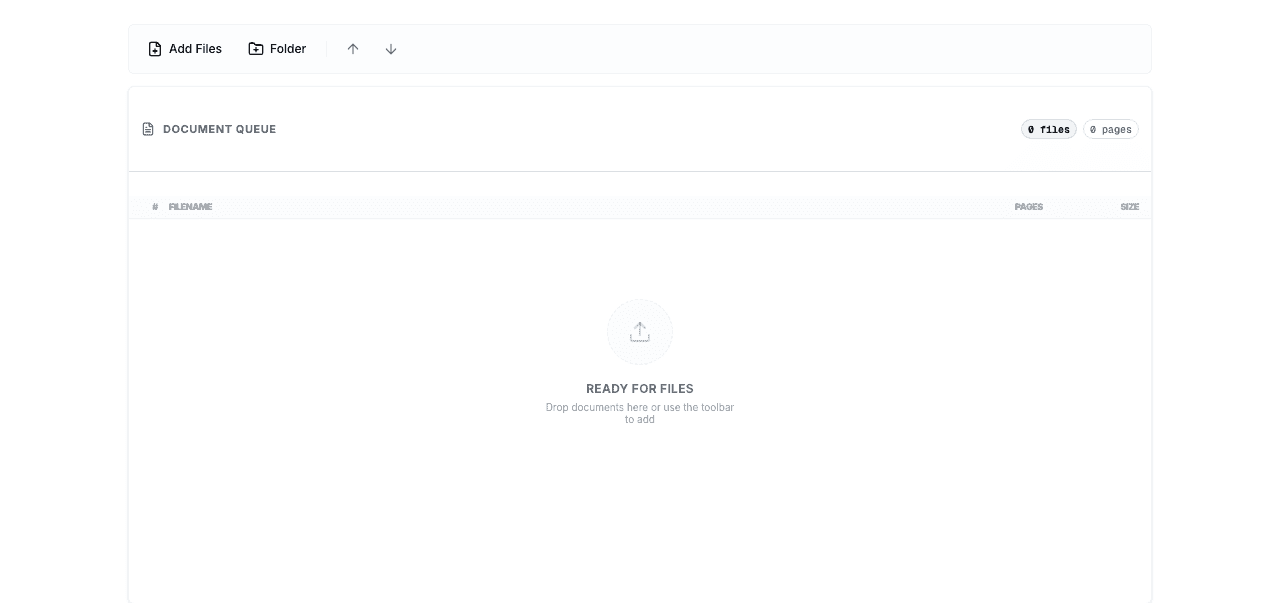
Using your Bates numbering tool, select all documents in your organized folder. Most tools allow you to:
- Drag and drop an entire folder
- Select multiple files using Ctrl+A (Windows) or Cmd+A (Mac)
- Use file selection dialogs to choose multiple documents
Step 3: Configure Batch Settings
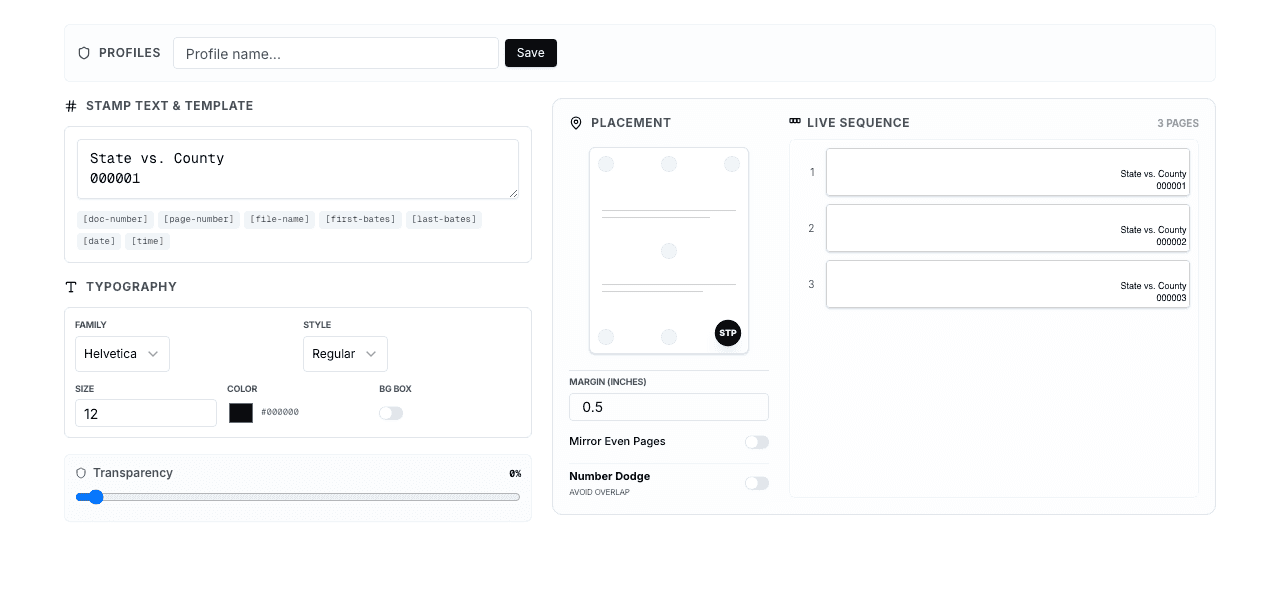
Set your Bates numbering parameters once—they'll apply to all documents in the batch:
- Starting number: First Bates number (e.g., BATES000001)
- Prefix: Case identifier or production code
- Number of digits: Typically 6-8 digits with leading zeros
- Position: Where numbers appear on each page
- Font and size: Consistent formatting across all documents
Step 4: Process the Batch
Execute the batch process. The system will:
- Process the first document with your starting number
- Calculate the ending number based on page count
- Start the next document with the subsequent number
- Continue sequentially through all documents
- Generate stamped versions of all files
Pro Tip
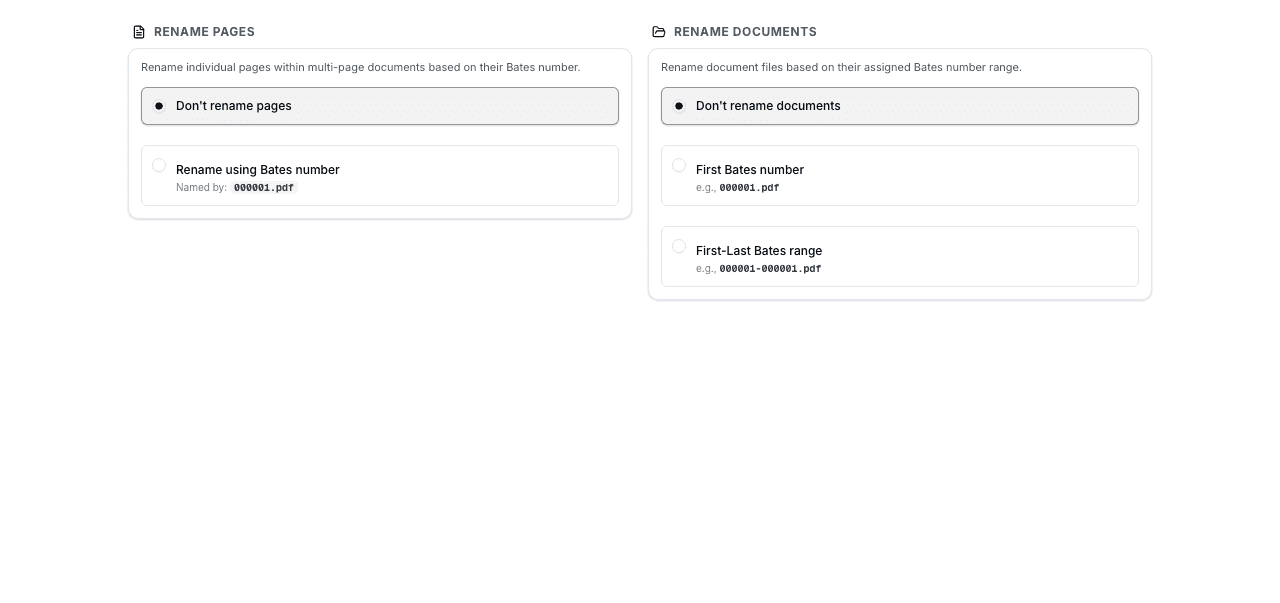
With BatesFast, batch processing happens entirely in your browser using WebAssembly. Your documents never leave your computer, ensuring complete privacy and security even when processing sensitive litigation materials.
Step 5: Verify Results
After batch processing, perform verification checks:
- Sequential continuity: Verify numbers flow correctly between documents
- First and last numbers: Check the starting and ending Bates numbers
- Visual consistency: Spot-check formatting across different documents
- Page count accuracy: Confirm total pages match expected count
- File completeness: Ensure all input files have corresponding output files
Advanced Batch Processing Techniques
Handling Large Document Sets
When processing thousands of documents, consider these strategies:
Chunking: Divide large sets into manageable batches of 100-500 documents. This makes verification easier and reduces the impact of any processing errors.
Parallel processing: If your tool supports it, process multiple batches simultaneously on different computers or using multiple browser tabs.
Progress tracking: Maintain a spreadsheet tracking batch numbers, date ranges, and custodians for each processing batch.
Mixed Document Types
When your batch includes different document types (emails, contracts, spreadsheets converted to PDF), ensure consistent handling:
- Verify all documents are in PDF format before batch processing
- Check that converted documents (Excel to PDF, etc.) display correctly
- Consider whether different document types need different Bates number positions
- Test position settings on sample documents before processing the full batch
Custodian-Based Batching
Many productions require separate Bates number ranges for different custodians:
Approach 1 - Separate prefixes:
- Smith documents: SMITH000001-SMITH000500
- Jones documents: JONES000001-JONES000300
Approach 2 - Number ranges:
- Smith documents: BATES000001-BATES000500
- Jones documents: BATES000501-BATES000800
Process each custodian's documents as a separate batch with appropriate prefix or starting number.
Common Batch Processing Challenges
File Order Issues
Problem: Files don't process in the expected order, resulting in incorrect Bates number sequence.
Solution: Use numerical prefixes with leading zeros (001_, 002_, etc.) to force correct sorting. Verify file order in your file manager before selecting files for batch processing.
Memory Limitations
Problem: Processing very large batches causes performance issues or crashes.
Solution: Break large sets into smaller batches. Process 100-200 documents at a time rather than attempting to process thousands simultaneously.
Inconsistent Page Counts
Problem: Some documents in the batch have unexpected page counts, throwing off sequential numbering.
Solution: Review page counts before batch processing. Identify and fix any documents with missing or duplicate pages.
Processing Failures
Problem: Batch processing fails partway through, leaving some documents unnumbered.
Solution: Identify which documents processed successfully, note the last Bates number used, and restart batch processing with remaining documents using the next sequential number.
Batch Processing Best Practices
Essential Best Practices
- Test first: Process a small test batch (5-10 documents) to verify settings before processing hundreds of files
- Keep originals: Never batch process your only copy of documents. Always work with copies
- Document your process: Record starting numbers, ending numbers, and date/time of each batch
- Verify continuity: Check that numbers flow correctly between batches if processing in multiple sessions
- Use consistent settings: Apply the same formatting across all batches in a production
- Quality control sampling: Review at least 10% of processed documents for accuracy
Batch Processing with BatesFast
BatesFast is specifically designed for efficient batch processing of Bates numbers:
- Multi-file selection: Select and process multiple PDFs simultaneously
- Automatic sequential numbering: Numbers flow correctly across all documents without manual tracking
- Client-side processing: All processing happens in your browser—documents never upload to servers
- Fast WebAssembly engine: Process hundreds of pages per minute
- Consistent formatting: Apply identical settings across all documents in the batch
- No file size limits: Process large document sets without restrictions
- Instant download: Get all processed documents immediately
The browser-based approach means you can batch process documents on any computer without installing software, while maintaining complete control over sensitive litigation materials.
Frequently Asked Questions
How many documents can I batch process at once?
This depends on your computer's memory and the tool you're using. Most modern systems can handle 100-500 documents per batch. For larger sets, divide them into multiple batches. BatesFast can handle large batches efficiently using WebAssembly technology.
What happens if batch processing fails partway through?
Note the last successfully processed document and its ending Bates number. You can restart batch processing with the remaining documents, using the next sequential number as your starting point. This maintains continuity across the entire set.
Can I batch process documents with different page orientations?
Yes, batch processing works with mixed orientations (portrait and landscape). However, you may need to adjust Bates number position settings to ensure numbers appear correctly on both orientations. Test with sample documents first.
How do I verify that batch processing completed correctly?
Check: (1) All input files have corresponding output files, (2) First and last Bates numbers are correct, (3) Numbers are sequential between documents, (4) Total page count matches expectations, (5) Formatting is consistent across all documents.
Can I batch process documents from different folders?
Yes, but organize them into a single folder first to ensure correct processing order. File systems may process files from different folders in unpredictable order, which could result in incorrect Bates number sequence.
What's the best way to organize files before batch processing?
Use numerical prefixes with leading zeros (001_, 002_, etc.) or date-based naming (2024-01-15_) to ensure files sort in the correct order. Verify the sort order in your file manager before selecting files for batch processing.
How long does batch processing typically take?
Processing speed varies by tool and computer performance. With BatesFast's WebAssembly engine, expect to process 100-200 pages per minute. A 500-page batch (50 documents averaging 10 pages) typically processes in 2-5 minutes.
Should I process all documents in one batch or multiple batches?
For sets under 500 documents, single-batch processing is usually fine. For larger sets, divide into logical batches (by custodian, date range, or document type) of 100-500 documents each. This makes verification easier and reduces risk if issues occur.
Conclusion
Batch processing is essential for efficient Bates numbering in modern litigation support. By processing multiple documents simultaneously with consistent settings and automatic sequential numbering, you can reduce document preparation time from hours to minutes while eliminating common errors.
Success with batch processing requires proper preparation: organize files correctly, verify settings with test batches, maintain quality control throughout the process, and document your work for future reference.
Whether you're processing 50 documents or 5,000, batch processing transforms Bates numbering from a tedious manual task into a streamlined automated workflow. With the right tools and techniques, you can handle even the largest document productions efficiently and accurately.
Ready to Batch Process Your Documents?
Try BatesFast's efficient batch processing with automatic sequential numbering, client-side security, and fast WebAssembly performance. Start with one free preview run, then $299 one-time purchase.
Start Batch Processing Now