Bates Numbering PDF: How to Bates Stamp a PDF
Bates numbering a PDF means stamping a unique, sequential identifier onto every page of the file so each page can be cited and retrieved. This guide shows how to add Bates numbering to a PDF in minutes with BatesFast — free to preview, with no uploads and no Adobe subscription.
Fast answer: how to Bates number a PDF
To Bates number a PDF, use dedicated Bates stamp software that applies sequential identifiers to every page. With BatesFast you open the app in any browser, drag and drop your PDF files, set a prefix (for example, ABC), a starting number, and digit padding, choose where the stamp sits on the page, then click Run. BatesFast stamps each page locally using WebAssembly, so the PDF is never uploaded to a server, and continuous numbering carries the Bates range across every file in the batch. You can then download the stamped PDFs individually or as a ZIP, optionally renamed with their first and last Bates numbers. The first preview run is free; full access is a one-time $299 purchase with no subscription — a practical alternative to Bates numbering a PDF in Adobe Acrobat.
Bates stamp a PDF nowWhat is Bates numbering on a PDF?
Bates numbering on a PDF is the practice of stamping a unique, sequential identifier onto every page of a PDF file. The name comes from the Bates Manufacturing Company, whose mechanical numbering machines stamped paper documents for over a century. Today the same job is done digitally: a PDF Bates stamp writes a fixed prefix plus an incrementing number — such as SMITH000001, SMITH000002 — into a corner of each page.
Legal teams rely on Bates-numbered PDFs so that a deposition, a motion, or opposing counsel can reference a single page precisely. “Please turn to SMITH000512” is unambiguous in a way that “page 512 of the third file” is not. The same discipline helps medical records teams, compliance departments, and corporate legal groups keep large productions organized and defensible.
How do I add Bates numbering to a PDF?
Adding Bates numbering to a PDF takes five steps in BatesFast. The whole process runs in your browser, so there is nothing to install and your files are never uploaded.
- 1
Open BatesFast in your browser
Go to the BatesFast app. There is nothing to install and no plugin to enable — it runs in any modern browser.
- 2
Add your PDF files
Drag and drop one PDF or a whole batch. You can mix in JPEG, PNG, and TIFF images; they are converted and stamped in the same run.
- 3
Configure the Bates stamp
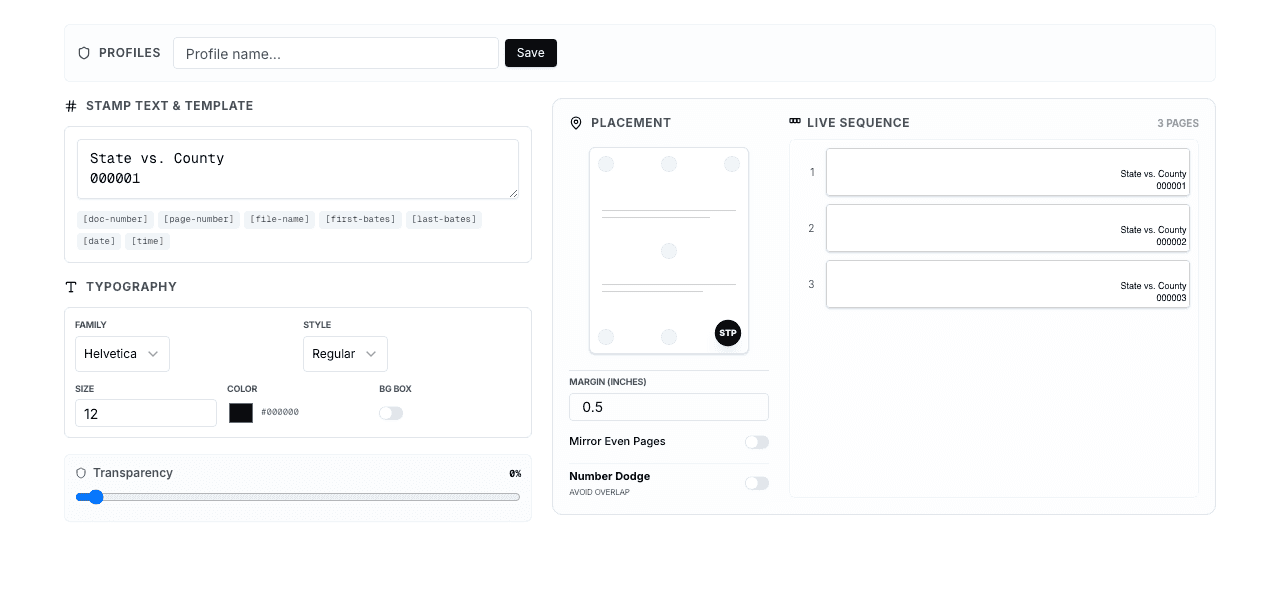
Set the prefix, starting number, digit padding, position, font, size, and color. Continuous numbering carries the range across every file automatically.
- 4
Click Run
BatesFast stamps every page locally using WebAssembly. Most productions finish in seconds, even large multi-hundred-page files.
- 5
Download your stamped PDFs
Export files individually or as a single ZIP archive, optionally renamed with their first and last Bates numbers.
How to Bates stamp a PDF for free
You can Bates stamp a PDF for free with BatesFast's preview run. After signing in, you get one full processing run — stamp your PDF, download the result, and confirm the format is exactly what your production needs before you buy. There is no watermark on the output and no artificial page cap on the preview.
This matters because most “free” PDF Bates tools fall into two camps: browser uploaders that send your confidential file to a server, or trial installs that stamp a demo watermark across every page. BatesFast avoids both. Processing is client-side, so a privileged PDF never leaves your device, and the preview output is production-clean.
Bates numbering a PDF in Adobe Acrobat vs BatesFast
Adobe Acrobat Pro can Bates number a PDF, but it is a full PDF suite priced on a recurring subscription. If Bates numbering is the job you actually need, a purpose-built tool is faster and far cheaper.
| Need | BatesFast | Adobe Acrobat Pro |
|---|---|---|
| Price | $299 one-time | Recurring monthly subscription |
| Install | None — runs in the browser | Desktop install required |
| Where files go | Stay on your device (client-side) | Local, but cloud features may sync |
| Batch + image inputs | PDF, JPEG, PNG, TIFF in one run | PDF-centric; images need conversion |
| Extras | File renaming + Avery label sheets | Not included for Bates workflows |
For a full breakdown of features, security, and three-year cost, read Adobe Acrobat vs BatesFast.
Bates numbering confidential PDFs without uploads
Discovery PDFs are often privileged work product or HIPAA-sensitive medical records. BatesFast processes every page client-side in your browser using WebAssembly, so the source PDF is never transmitted to a server. That keeps confidential productions inside your control while still giving you batch stamping, continuous ranges, and exportable Bates indexes.
Why local processing matters for privileged filesBates numbering PDF format best practices
A clean, consistent Bates format prevents renumbering headaches later. Follow these rules when you stamp a PDF production:
- Use a consistent alphabetic prefix per producing party (for example, SMITH or DEF).
- Zero-pad digits to cover your largest production — six digits (000001) handles up to 999,999 pages.
- Place the stamp in a bottom corner so it never covers exhibit text or existing page numbers.
- Keep one continuous Bates range across a document set rather than restarting per file.
- Export a Bates index so every document's first and last number can be verified later.
Need non-standard formats? See custom Bates number formats for prefixes, suffixes, and template variables.
Frequently asked questions about Bates numbering PDFs
What is Bates numbering on a PDF?
Bates numbering on a PDF is the practice of stamping a unique, sequential identifier onto every page of a PDF file. Each page receives a number, often with a prefix such as ABC000001, so legal, medical, and business teams can cite, index, and produce documents without confusion.
How do I add Bates numbering to a PDF?
Open BatesFast in your browser, drag and drop your PDF files, set a prefix, starting number, digit padding, and position, click Run, then download the stamped PDFs individually or as a ZIP. Files are processed locally and never uploaded.
Can I Bates stamp a PDF for free?
Yes. BatesFast includes one free preview run so you can Bates stamp a PDF and download the result before buying. After the preview, BatesFast is a one-time $299 purchase with no subscription, unlike Adobe Acrobat's recurring monthly fee.
How do I Bates number a PDF in Adobe Acrobat?
In Adobe Acrobat Pro, open Tools, choose Edit PDF, select More, then Bates Numbering, and click Add. Choose your files, set the prefix, digit count, and position, then apply. Acrobat requires a paid subscription and a local install; BatesFast performs the same Bates numbering in any browser for a one-time price.
Is it safe to Bates number confidential PDFs online?
It depends on the tool. Many online PDF tools upload your file to a server. BatesFast processes PDFs entirely client-side in your browser using WebAssembly, so privileged and confidential documents never leave your computer.
What format should Bates numbers on a PDF use?
A standard Bates number on a PDF uses a fixed alphabetic prefix plus zero-padded digits, such as SMITH000001. Keep the prefix consistent per producing party, pad to a digit count that covers your largest production, and place the stamp in a corner where it will not cover document text.
Related Bates numbering guides
How to Add Bates Numbers to PDF Documents
The full step-by-step tutorial with configuration and file-naming detail.
Adobe Acrobat vs BatesFast
Compare Bates numbering a PDF in Acrobat against a purpose-built browser tool.
Bates Stamp Software for PDFs
What to look for when choosing dedicated Bates stamp software.
PDF Stamping Technology
How client-side PDF stamping actually works under the hood.
Bates number your PDF now
Open BatesFast, drop in your PDFs, set your prefix and starting number, and stamp the whole production locally in your browser. Start with one free preview run.
Start Bates numbering